Distinct stroke characters for direct spatial painting.
Available / mappedEdition C · Complete platform
One camera. More than capture.
Take photos and videos, use both cameras together, paint in augmented reality, recognize artworks, attach digital layers, edit media, and protect private images through one evolving camera.
The platform in one sentence
CAPTURE
AR
EDIT
PROTECT
one visual system
PHOTODUALARSAFE
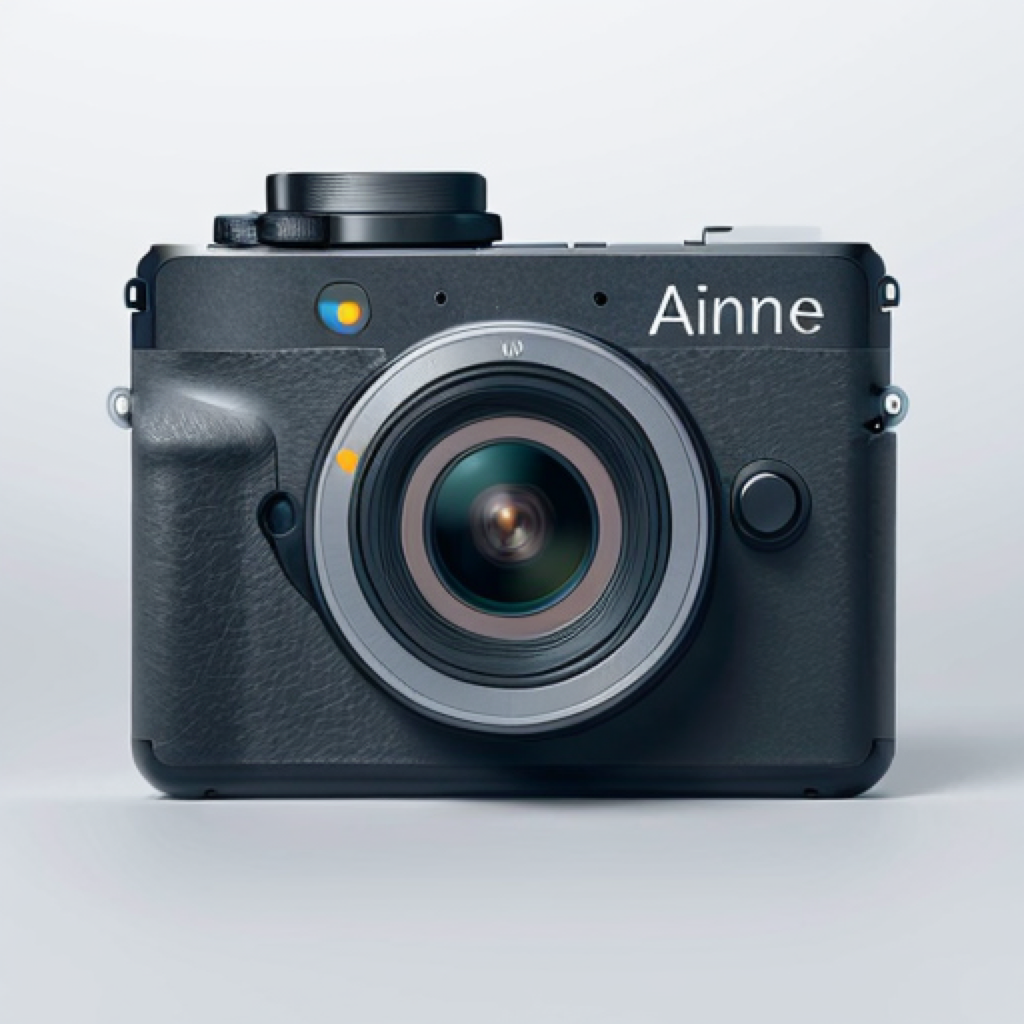
A compact platform map layered over the familiar Kamera capture workflow.
Why build a broader camera?
It’s time for a new camera.
Camera applications changed far less than the way people use images. Photography, video, augmented reality, spatial computing, privacy, and creative documentation are increasingly connected, yet most camera apps still expose only a few conventional modes.
Kamera starts with useful photography and video, then adds layers for creativity, AR, privacy, security, and community-led evolution. It is a tool-first platform: make, capture, organize, edit, and protect visual material without designing around advertising or endless engagement.
A map of the system
Several layers. One camera.
Use the map to jump through the platform. The page keeps the information visible in the document so the map remains a shortcut, not a gate.
Why so many tools?
Depth does not have to mean clutter.
Families may need group photos. Artists may need AR painting and image targets. Photographers may need capture and editing. Privacy-conscious users may need censorship, locked folders, or stronger media protection.
Modes and settings let each person expose the layer they need. The breadth is organized around real problems, not a random catalogue.
Normal cameraPhoto · Video · Pano
Artist ModeAR · Targets · Projects
Privacy ModeCensor · Lock · Protect
Power controlsDual · Edit · Inspect
The feature catalogue
Inspect what the platform can actually do.
Each group starts with the user problem, names the current capability, and marks developing or research work separately. The structured catalogue is also available as feature data for future detail pages and the Camera Lab.
Browse the shared catalogue in Camera Lab
Available
01 · Core camera and capture
Start with a normal camera.
Kamera does not require AR or an advanced editor before taking a picture. The familiar base is photo and video capture, with additional capture modes layered on top where supported.
- Photo and video capture.
- Portrait and camera effects where supported.
- Timelapse and panorama capture.
- Dual-camera compositions.
- AR scenes captured as photo or video.
Implementation note
Advanced modes are optional. The page does not treat every future experiment as a released camera mode.
PHOTOVIDEOPANOAR●
Available / mapped
02 · Dual Camera Everywhere
Use front and rear cameras together.
Dual Camera is more than one novelty mode. The current feature map includes front and back capture, picture-in-picture, vertical and horizontal splits, custom layouts, movable and resizable windows, and combined photo or video capture where supported.
It can document the scene and the reaction, compare two viewpoints, show a demonstration, or solve a group-photo workflow.
Layout vocabulary
PiP corners, horizontal split, vertical split, full back, full front, quad, front cutout, back plus cutout, and bottom cutout are the named layouts in the feature guide.
MOVERESIZE
In development
03 · Group Photo
Use more than one moment to include the photographer.
Frame and capture the group first. Then the photographer joins, uses the front-camera cutout, and is composited into the base photograph. The feature is being developed as a practical solution to the missing-photographer problem, not as a promise of flawless results in every scene.
- Capture the group.
- Join the group.
- Capture the photographer cutout.
- Combine the views and review.
GROUP
PHOTOGRAPHER
+one coherent picture
Available / mapped
04 · Augmented-reality camera
A spatial camera, not a filter drawer.
The AR camera can track or understand surfaces so visual content can exist relative to the real environment. Open AR, allow the space to be identified, choose a tool, paint or place content, move through the room, and capture the result.
- Wall, floor, room, and surface-aware creative placement.
- Spatial strokes around objects and across multiple surfaces.
- Room-scale creative work and AR documentation.
- Photo and video capture of AR scenes.
SPACE TRACKED
Available / mapped
05 · AR brushes and spatial tools
Different tools for different spatial marks.
The AR painting engine names real tools instead of hiding them behind generic “effects.” The status of each tool can evolve with the app.
Material and visual treatments for different marks.
Available / mappedManipulate, repeat, or select visual work in the AR view.
Available / mappedSample the live camera environment as the stroke material.
In developmentAdditional tool behaviors from the current feature map.
Available / mappedPaint physics and surface-aware visual behavior.
Available / mappedInspected from the current iOS app source
Tool visual language
Every control, shown clearly.

Paint mode
Switch from emoji stamps to direct colour painting.

Emoji stamps
Choose an emoji from the large brush palette.
3D tube
Toggle volumetric tube strokes for spatial lines.
Brush size
Adjust the active stroke width with the size slider.
Live colour sampling
Sample a visible camera colour and continue painting.
Target walls
Limit painting to wall surfaces when the mode supports it.
Target floor
Limit painting to floor surfaces when the mode supports it.
Occlusion
Use tracked planes as depth masks where available.
Undo
Remove the latest stroke from the current work.
Clear
Remove the current painted strokes from the scene.
Save / export
Save the current visual work or export a snapshot.
Timelapse play
Play back the recorded stroke sequence.
Media placement
Toggle interaction with placed media objects.
Import media
Bring an image or video into the AR workspace.
Create image target
Start the custom image-target creation workflow.
Settings
Open the wider camera and AR configuration controls.
AI mode
Expose the AI-assisted frame and wall tools.
3D emoji capture
Open the capture workflow for creating a 3D emoji asset.
AI frame playback
Play or pause the AI frame sequence.
Redo
Redo the most recent AI or editing action where available.
Random emoji
Choose a random emoji from the available palette.
Snapshot
Capture a still image from the current scene.
Pause / resume planes
Pause or resume plane updates while working in the room.
Image-target editor
Adjust and save layers in the target editing workflow.
CAMERA VIEW
→LIVE TEXTURE
In development
06 · Texture Brush
Paint with reality itself.
The live camera image becomes the texture source. As the user paints in AR, visible colours, surfaces, and structures can be sampled and mapped into the spatial stroke.
That makes it different from choosing a premade library texture: it is live, tied to the current environment, and changes with what the camera sees. The room becomes the material.
In development
07 · Live Camera Colour Picker
Point. Sample. Continue.
Point the camera at a visible colour and use it in the creative workflow. Where supported, the same continuity can extend to existing photos or media being edited.
LIVE PIXEL→COLOUR→STROKE
In development
08 · Save, reload, continue
Make AR a reusable project.
Spatial strokes, arrangements, image-target projects, and placement data are intended to become reopenable work. Exact persistence depends on the current implementation and physical environment; this is not a promise of perfect location persistence.
In development
09 · Artwork recognition and library
The camera can recognize the work being documented.
Register a particular artwork, photograph it later, and use recognition to associate progress photographs, details, installation views, exhibition documentation, and related videos around that work.
This is artwork-specific organization, not a promise that every object is recognized in every condition.
Workflow
Register artwork → photograph it later → recognition occurs → related media appears together.
ARTWORK
Blue Study 0418 related captures
Blue Study 0418 related captures
detail
installation

Available / mapped
10 · Image Targets
Turn a physical image into an anchor.
An artwork or image can become a recognizable target. When the camera sees it again, attached digital content can appear in relation to it. This is different from a QR code: the image itself is the visual anchor.
- Video and timelapse layers.
- Digital painting and AR strokes.
- Visual overlays and spatial extensions.
- Content positioned around the physical image where supported.
PHYSICAL IMAGE

In development
11 · Timelapse attached to artwork
Let the process appear on the finished work.
Record the creation process, register the finished artwork as an image target, then reveal the related timelapse when the camera recognizes it. The process becomes part of the presentation.
01Register
02Assign
03Recognize
04Reveal

In development
12 · Image-target editor
Place layers around the recognized image.
The current direction includes selecting a target, attaching video or painting layers, placing AR strokes, adjusting scale and position, previewing the target, and saving the project.
Future spatial editor: higher-resolution projects, richer animated layers, professional exhibition placement, and AI-assisted 3D generation are roadmap or research directions—not released capabilities.
IMAGE TARGETVIDEOPAINTSPACE
Available / mapped
13–14 · Timelapse and panorama
Capture processes and spaces that a still frame cannot explain.
Timelapse condenses a process over time. Panorama documents a wider environment. For AR work, both are important because an installation may develop across a room and outside one normal frame.
AR Timelapse
Begin recording, move through the room, paint across surfaces, stop, and review the creation process as one condensed sequence.
AR workflow developingPanorama
Document installations, work across several walls, or an AR painting that extends around a room. Experimental AR output must be labeled as such.
AR panorama developingPhoto and video
Capture the AR scene as familiar media without reconstructing the creative process elsewhere.
Core capture mapped
In development
15–16 · Photo and video editing
The media remains part of the workflow.
Photo editing
Crop, rotate, draw or paint on the image, sample colours, add supported overlays, and continue visual work after capture.
Video editing
Trim, crop where available, change playback speed, speed up, slow down, reverse, and stitch multiple clips together.
These are integrated creative tools, not a claim that Kamera is a full professional nonlinear editor.
TRIMSPEEDREVERSESTITCH
Available / mapped
17 · Realtime face censorship
Protect people while recording.
Through settings or a privacy mode, live faces can be censored using pixelation or black censor bars on front and rear camera workflows where implemented.
Use the tool for public documentation, exhibitions, installation processes, children or bystanders, or a deliberate visual censorship style. It is a user-controlled privacy tool, not a legal-clearance guarantee.
PIXELATED FACEBLACK BAR●
Feature map / availability varies
18 · Secure library
Privacy starts inside the camera.
Protected albums, locked folders, Face ID or PIN protection, hidden media, and separation between ordinary and sensitive images are part of the secure-library direction. Platform limitations apply.
Research / experimental
19 · Optional image encryption
Stronger ownership for sensitive images.
An optional encrypted representation can transform an image so it is not readable through the intended system without the correct key or recovery information. This is not a claim of unbreakable security, perfect anonymity, or protection from every AI system.
SCAN RESULTexample.com/targetHTTPS · redirect visible · confirm before opening✓
Available / mapped
20 · QR security scanner
Inspect the destination before opening it.
The scanner can preview the destination URL, domain, HTTPS status, possible redirects, warning indicators, suspicious formatting, and user confirmation where supported. It provides basic checks and transparency, not comprehensive malware detection.
21 · Modes and interface customization
A powerful camera does not need to be crowded.
Normal Camera, Artist Mode, Privacy Mode, Security Mode, and optional experimental functions can expose different control groups. The exact set evolves with the product.
NormalPhoto · Video · Pano
ArtistAR · Targets · Projects
PrivacyCensor · Lock · Protect
PowerDual · Edit · Inspect
22 · Connected workflows
The features form a system when used together.
Group photograph
Frame → capture base image → join group → front-camera cutout → review → edit or store securely.
Spatial artwork
Artist Mode → scan room → sample colour or texture → paint → timelapse → photo, video, panorama → save.
Artwork target
Register work → organize captures → create target → attach timelapse or video → place AR layers → reopen.
Privacy documentation
Privacy Mode → censor faces → capture → protected album → optional experimental encrypted representation.
Secure QR scan
Scan → inspect destination → review indicators → choose whether to open the link.
23 · Development transparency
Know what is current, developing, or still research.
The platform is deliberately explicit about status. The shared feature records can later synchronize with Page D without creating duplicate feature definitions.
Available
Current feature map and implemented foundations.
Beta / In development
Active work, limited workflows, or behavior still being improved.
Research
Exploration that needs technical validation.
Planned
Direction, not a released capability.
24 · Roadmap preview
A platform that can keep growing without pretending it is finished.
More AR brushes, richer material behavior, stronger room-scale persistence, spatial editing, and better save/reload workflows.
High-resolution target projects, fuller 3D placement, richer layers, professional exhibition workflows, and AI-assisted 3D as research.
Stronger photo tools, video editing, panorama, timelapse, and deeper capture-to-edit integration.
Protected media workflows, image-encryption research, more live censorship options, and transparent controls.
Feature requests, ratings, roadmap voting, discussions, developer updates, and milestones on Page D.
Long-term roadmap
25 · Future Photos app
Capture first. Organize and share later.
A possible future split would keep Kamera focused on capture, creation, and AR while a separate Photos app handles private organization and optional public photograph sharing with captions, hashtags, locations, and artist pages.
Development milestones such as around 1,000 users for stronger community functions or around 10,000 users for a separate Photos app are goals, not guaranteed release contracts.
CAMERA→PHOTOS
26 · Camera Lab / Page D
Inspect here. Discuss and influence what comes next there.
Page C explains the platform. The separate Camera Lab can later let people browse features, rate existing tools, vote on roadmap items, submit wishes, discuss workflows, see developer responses, and follow status changes.
No forum, accounts, fake votes, ratings, or user-submission system is built into this page.
Visit the Camera LabBrowseDiscussPrioritizeBuild
27 · A camera that can keep growing
Start with capture. Add depth when you need it.
Photos and videos first. Dual-camera capture, spatial painting, image targets, editing, privacy, and experimental tools when your work requires them. Then help shape what the camera becomes next.
App Store availability will be announced with the release listing.